Step 1: Navigate to the Contact Page
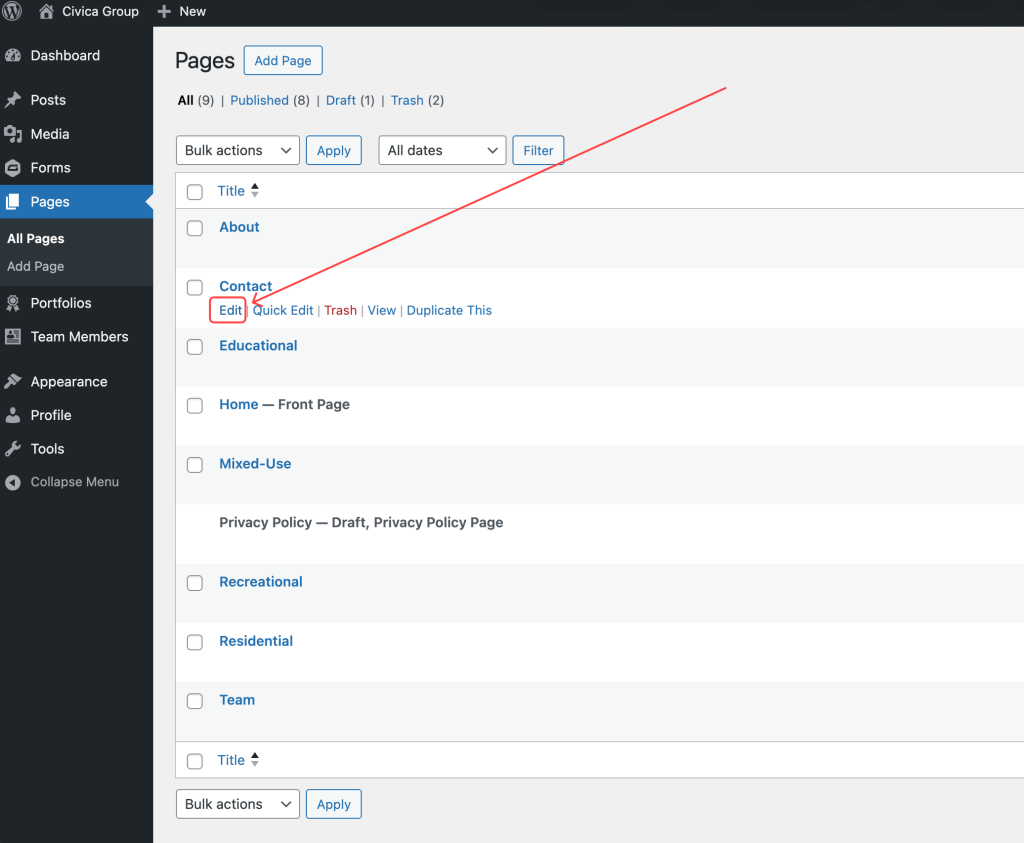
From the left-hand menu, click Pages, then hover over the Contact page and click Edit.
Step 2: How to Replace the Contact Image
Hover over the image in the Image block and click the “X” to remove the image.
Next, click Add Image to upload / select a new image.


Step 3: Edit the Text
Click inside either of the text boxes to edit the text. Do not modify or delete the [wpforms id="132"] shortcode — this is what loads the contact form on the live website. Removing or changing it will break the form.

Step 4: Hide a Block from the Front End (Optional)
The Hide on front end toggle at the top of the content area can be used to hide the block from the public website without deleting it. When the toggle reads Visible, the block is live. Toggle it off to hide it from visitors.

Step 5: Save Your Changes
Click the blue Save button in the top-right corner to publish your changes to the live website.
