Step 1: Navigate to the Home Page
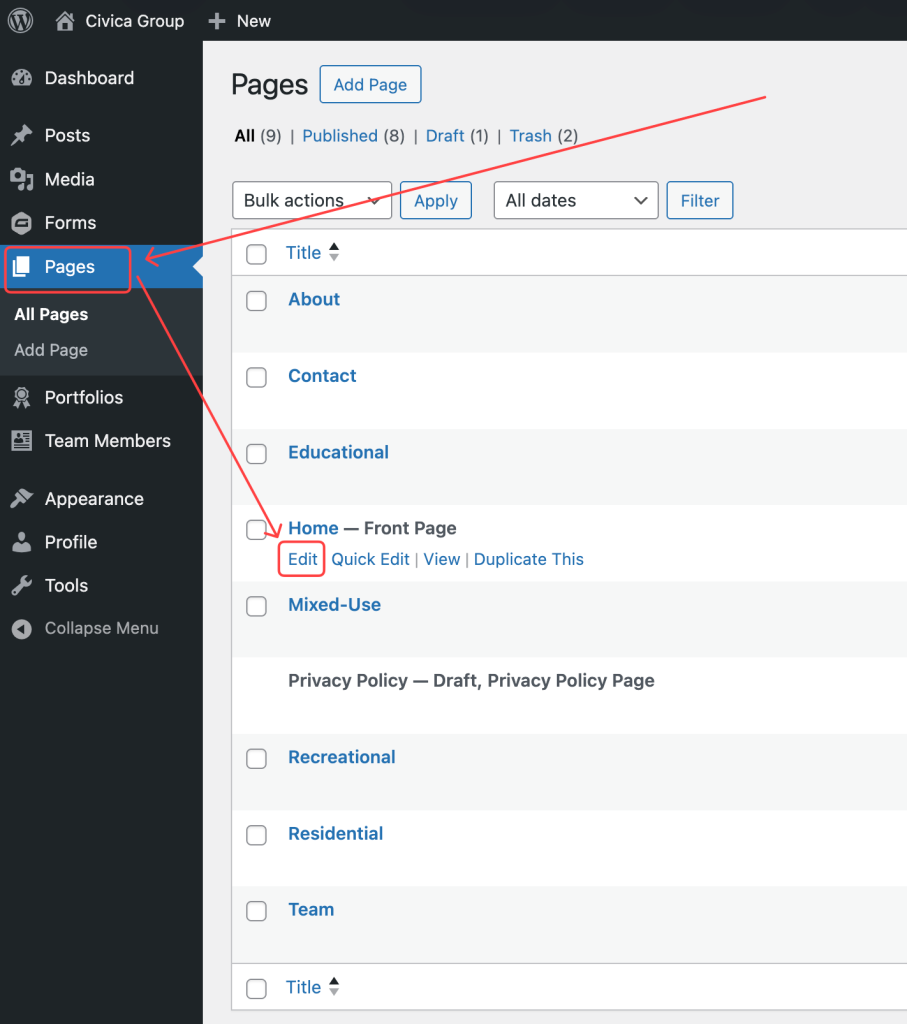
From the left-hand menu, click Pages, then hover over the Home page and click Edit.
Step 2: Add a Project to the Homepage
Click inside the Projects field. A dropdown list of all available portfolio projects will appear. Click the project you want to add and it will appear as a tag in the field. You can also start typing a project name to search and filter the list.
Note: Only published portfolio items will appear in the dropdown. Items marked as (draft) are not yet live on the website.

Step 3: Remove a Project from the Homepage
Click the × next to the project’s name tag in the Projects field to remove it from the homepage. This only removes the project from the homepage display — the portfolio item itself is not deleted.

Step 4: Save Your Changes
Click the blue Save button in the top-right corner to publish your changes to the live website.
