Step 1: Navigate to Project Categories
Before adding a new category to the header menu, you first need to create it in WordPress. From the left-hand menu, click Portfolios to expand it, then click Project categories.

Step 2: Add the New Category
On the left side of the Project categories screen, fill in the Name field with your new category name (e.g. Mixed-Use). The Slug field will auto-populate when the category is saved — leave it blank. The Description field is optional and not displayed on the site by default. When ready, click Add New Project categories. Your new category will appear in the list on the right.

Step 3: Assign Portfolios to the New Category
With the new category created, you can now assign existing or new portfolio items to it. From the left-hand menu, click Portfolios, then click All Portfolios. Hover over the portfolio item you want to assign and click Edit. In the right-hand panel, locate the Project categories section and check the box next to your new category. Click the blue Update button to save. Repeat this for each portfolio item you want assigned to the new category.


Step 4: Duplicate an Existing Category Page
Each header menu item links to its own page. To create one for your new category, you’ll duplicate an existing category page rather than building one from scratch. From the left-hand menu, click Pages. Hover over an existing category page such as Residential or Sports & Recreation and click Duplicate This. This will create a copy of the page which you can then edit.

Step 5: Update the Duplicated Page
Hover over the newly duplicated page and click Edit to open it.

- Update the page title at the top to match your new category name (e.g. Mixed-Use).
- Then locate the Project Category dropdown in the content area and select your new category from the list.
- Update the slug (URL) to match your new category (e.g. /mixed-use)
Once both fields are updated, click the blue Publish button in the top-right corner to publish the page.

Step 6: Navigate to the Menu Editor
From the left-hand menu, click Appearance, then click Menus. You will land on the Edit Menus tab with the Primary menu already loaded. This is the main navigation menu displayed across the top of the website.

Step 7: Add the New Page to the Menu
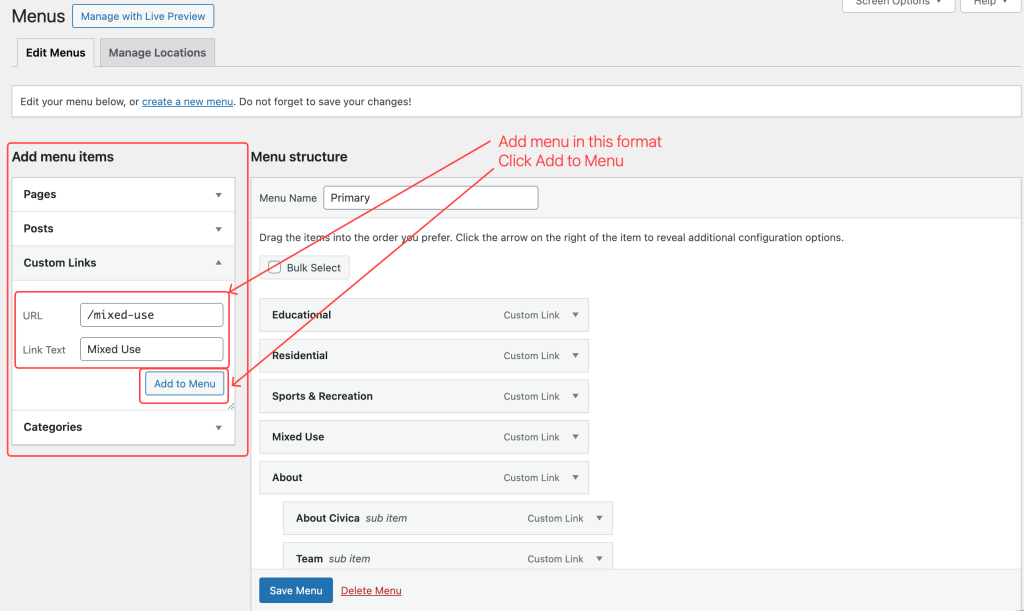
In the Add menu items panel on the left, locate the Custom Links section and click the arrow to expand it. In the URL field, enter the URL of the new page you just created. In the Link Text field, enter the category name as you want it to appear in the navigation (e.g. Mixed-Use). Click Add to Menu. The new item will appear at the bottom of the menu structure on the right.
Step 8: Reorder the Menu Item
Click and drag the new menu item up or down within the Menu structure panel to position it where you want it to appear in the navigation. The current top-level order is: Educational → Residential → Sports & Recreation → About → Contact. Do not drag the item inward — this would make it a sub-item under another menu item rather than a top-level link.

Step 9: Save the Menu
Once the new item is in the correct position, click the blue Save Menu button at the bottom of the page. The new category will now appear in the header navigation on the live website.
