Use the instructions below to manage the Featured Events carousel displayed on the homepage.
Note: Up to 10 events can be displayed in the Featured Events carousel. If fewer than 10 events are selected, the remaining slots will be filled automatically with other events from the website. For example, if only 6 events are selected, 4 additional events will be displayed automatically.
Step 1: Open the Homepage
From the left-hand menu, select Pages. Use the search bar to search for “Food Network”, then click Food Network New York City Wine & Food Festival | Oct 15 – 18 — Front Page. Scroll down to the Homepage Sections area and click the Featured Events tab.

Step 2: Select Featured Events
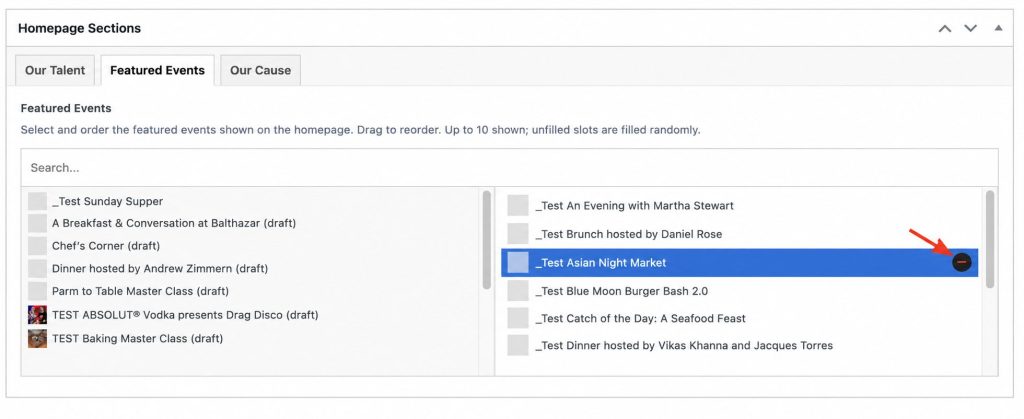
Use the search field to find events you would like to feature on the homepage. Click an event name from the list on the left to add it to the Featured Events list on the right.
You may select up to 10 events.
Note: Up to 10 events can be displayed in the Featured Events carousel. If fewer than 10 events are selected, the remaining slots will be filled automatically with other events from the website. For example, if only 6 events are selected, 4 additional events will be displayed automatically.

Step 3: Reorder Featured Events
To change the order in which events appear on the homepage, click and drag the selected events within the list on the right. The event at the top of the list will appear first in the Featured Events carousel.

Step 4: Delete Featured Events
To remove an event from the Featured Events list, hover over the event and click the minus (-) icon on the right side of the row.
Step 5: Publish Changes
Click the blue Update button in the upper-right corner of the page to save your changes. The Featured Events carousel on the homepage will update automatically.
