- Add Newsletter
From the lefthand menu, hover over Newsletters, then select Add Newsletter.

- Add Newsletter Title (Date)
Enter the date of the newsletter for the title. The format should be: June 12, 2024.
The link (permalink) for the newsletter will be created automatically based on the title/date you enter. In this example, the link will be https://www.nycwff.org/june-12-2024.

- Setup & Testing
See “Part 3: How to Test the Newsletter from WordPress” when you are done building the newsletter and ready to test.

- Add Newsletter Information
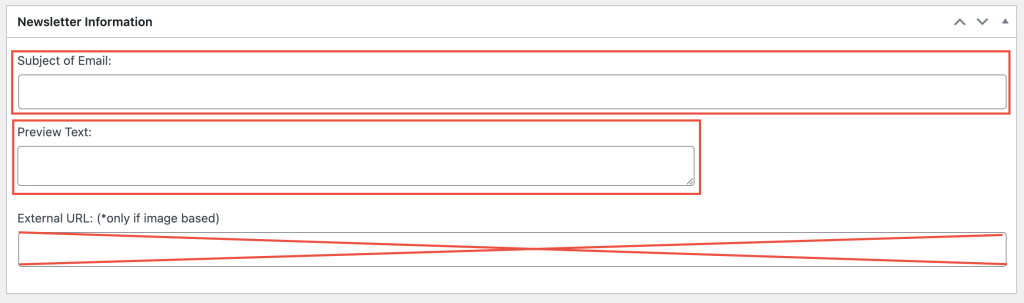
Add the Subject of Email and Preview Text. You don’t need to enter anything in the External URL field.
- Section Visibility
Stories with checkmarks will be displayed in the newsletter. Stories without checkmarks will not be displayed.

- Select Featured Personalities
Select eight (8) talent who should appear in the MEET THE TALENT section of the newsletter.

-
- Save Draft or Publish
You can either save a draft (unpublished) or publish the newsletter.
- Save Draft or Publish
Draft: At this point, we recommend you save the newsletter as a draft until you are done building the entire newsletter. If you save a draft, the newsletter link will not be “live”. You can use the “Enable public preview” option to share the newsletter internally with your team. To create a public preview link, check the “Enable public preview” checkbox. Then copy the URL provided.

Publish: If you publish the newsletter, the URL will be “live” and accessible by the public.
