Personalities (Talent) How-To Guide
After a talent is marked “Approved” in the “Send to Website Board” column of the monday.com talent board, the profile is automatically created on the website in Draft mode. Review the profile and publish it when ready.
Guide Sections
- Reviewing a Talent Profile – Review profile information and publish the personality.
- Monday.com Sync – Sync updates made in Monday.com after the personality has already been created on the website.
- Previous Versions – Review backups, restore previous versions, and view sync history.
- Bulk Publishing Personalities – Publish multiple personality profiles at once.
Reviewing a Talent Profile
- Personality Information – Verify the first and last name.
- Featured Image – Confirm the correct image is assigned.
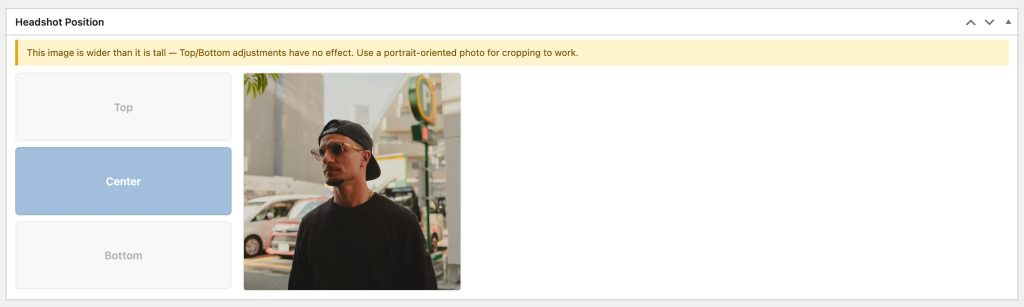
- Headshot Position – Use Top, Center, or Bottom to adjust the image crop.
- Social Media / Web Links – Verify all links are correct.
- Bio – Review and edit the biography as needed.
- Affiliation – Confirm the correct restaurant or affiliation is selected.
- Personality Type – Confirm the correct category is selected.

Headshot Position: If the image is wider than it is tall, the Top/Bottom adjustments will have no effect. Use a portrait-oriented photo for cropping to work.
Monday.com Sync
The Monday.com Sync feature should only be used after a personality has already been created on the website from Monday.com and additional updates have been made to the Monday.com board that need to be reflected on the website.
To sync all profile information from Monday.com, select All Fields and click Sync Now from Monday.com.
If only a specific field was updated in Monday.com, such as the Instagram link, select only that field and click Sync Now from Monday.com. This allows you to update a single piece of information without overwriting other website content.
After the sync is complete, click the blue Update button to save the changes to the profile.

Previous Versions
The Previous Versions section stores backups of the profile. Up to five backups are kept.
Click View Snapshot to review a saved version before restoring it. Click Restore to roll the profile back to that version.
The Sync Activity section shows recent sync history, including when a profile was created, updated, linked to an exhibitor, or marked as synced.


Bulk Publishing Personalities
To publish multiple personalities at once:
- Select the checkboxes next to the profiles you want to publish.
- Choose Edit from the Bulk Actions dropdown and click Apply.
- Change the Status field to Published.
- Click Update to publish all selected profiles.


